
Trigger VWO Events Using GTM
Overview
The VWO Event is a custom Google Tag Manager (GTM) template designed to simplify the process of sending custom events and properties to VWO, instead of writing custom JavaScript code to push data to the window.VWO object, this feature enables users to configure event tracking directly within the GTM interface.
Prerequisites
Before setting up, ensure you have:
- Access to your Google Tag Manager container with publish permissions
- The VWO Event (.tpl) file
- Your VWO Account ID (if using Feature Experimentation)
- A GTM variable for the VWO UUID (if using Feature Experimentation/Offline Conversions)
NOTE: The VWO Event setup is exclusively applicable to Data360 accounts.
Installing VWO Event on GTM
Download the VWO Event tag template from here, extract the files and perform the following steps to install the VWO Event on GTM:
-
Log in to your GTM account and select the appropriate workspace where you want to install the VWO Event.
-
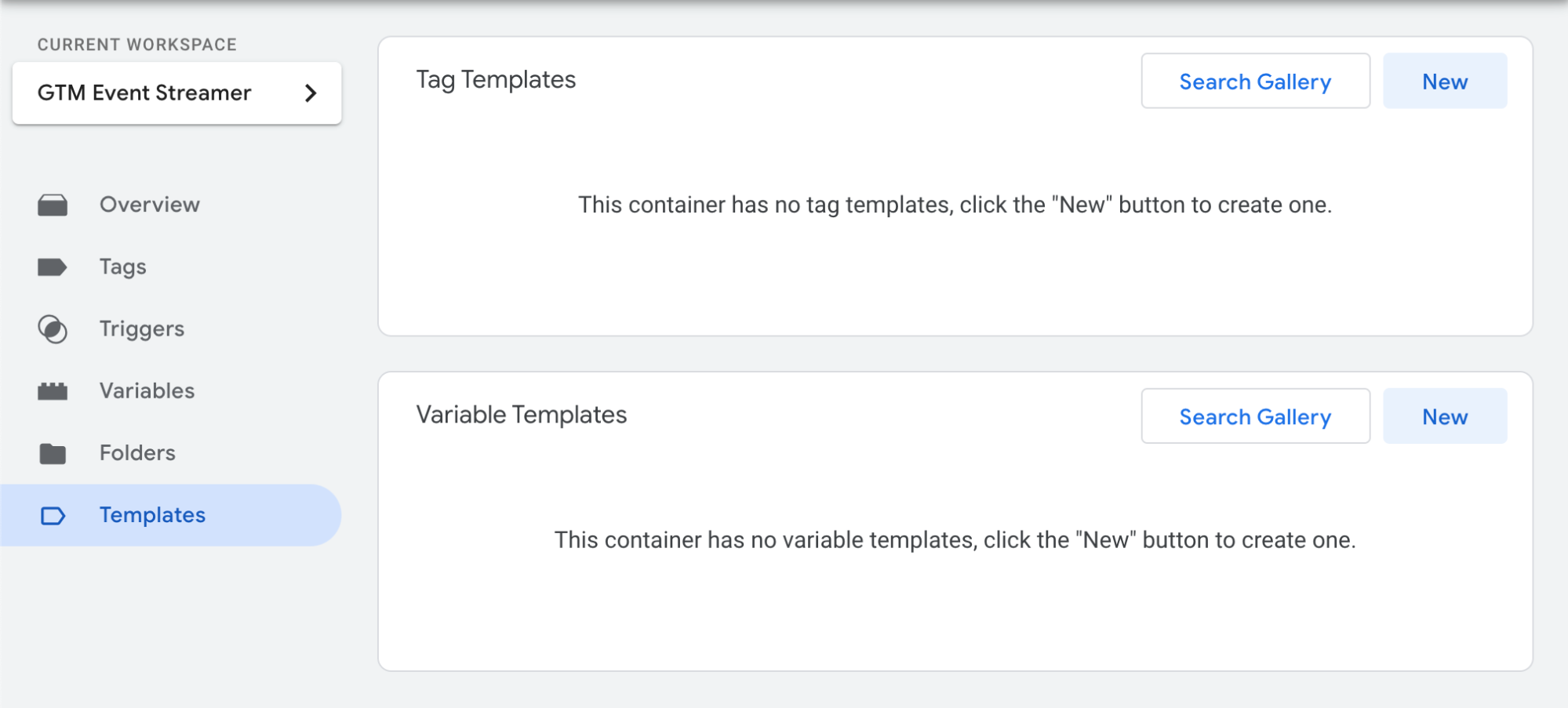
From the main menu on the left, go to Templates > Tag Templates > New.
-
On the Template Editor page, click on the vertical ellipsis (⋮) and select Import.
-
Browse for VWO Event.tpl from the VWO Event files that you’ve downloaded and select it. The template is uploaded to GTM.
-
Click Save to complete the import of the VWO Event template.
Using the VWO Event Template
Upon successful import, you can use the VWO Event template to stream the events from GTM to VWO effortlessly. To do that, perform the following steps:
-
From the main menu on your GTM dashboard, navigate to Tags > New.
-
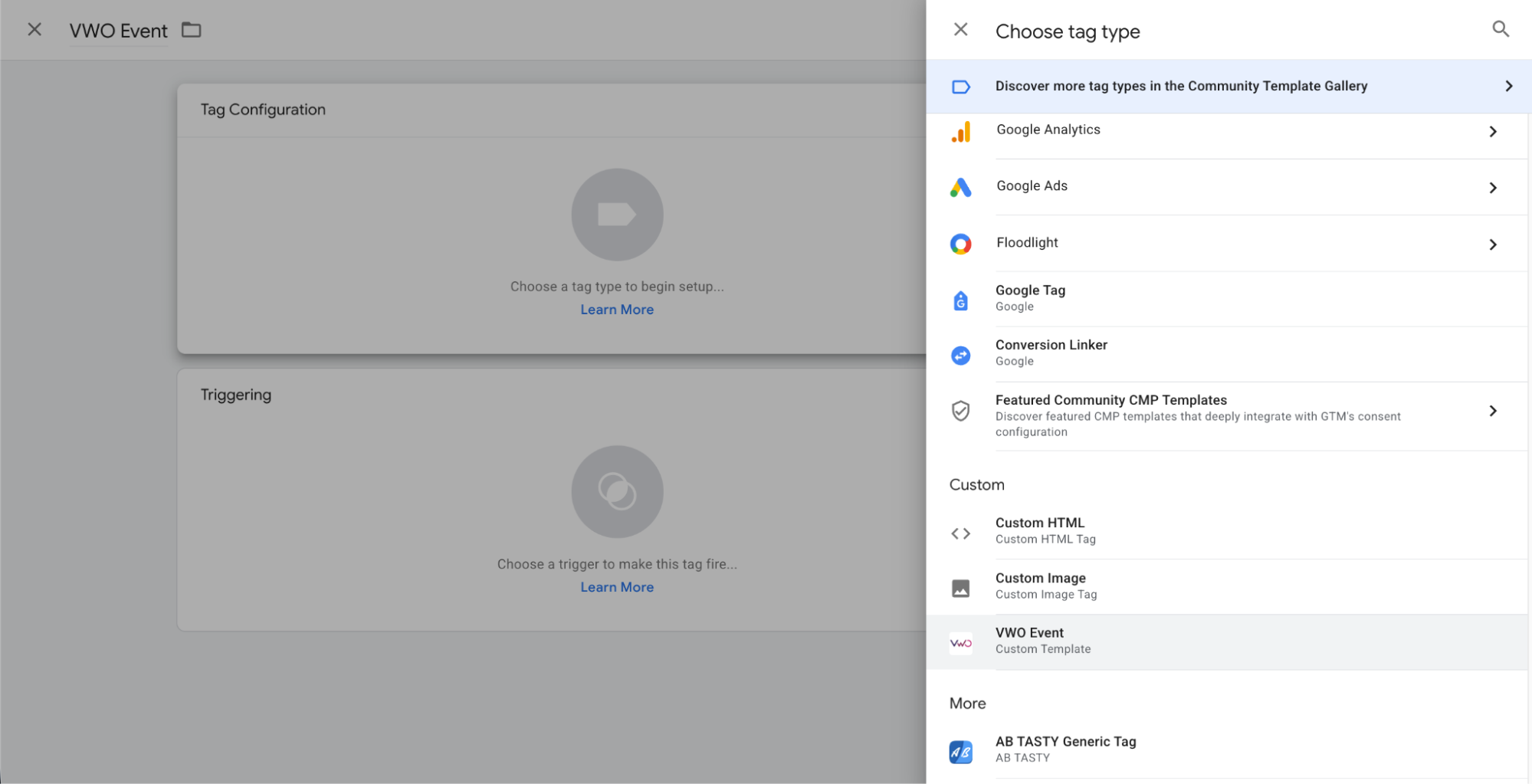
Name the tag and click on the Tag Configuration section
-
From the list of tags, under the Custom section, select the VWO Event tag that you just imported.
-
To customize the tag configuration further, you can utilize the following options:
- Enter the Event Name you want to send to VWO
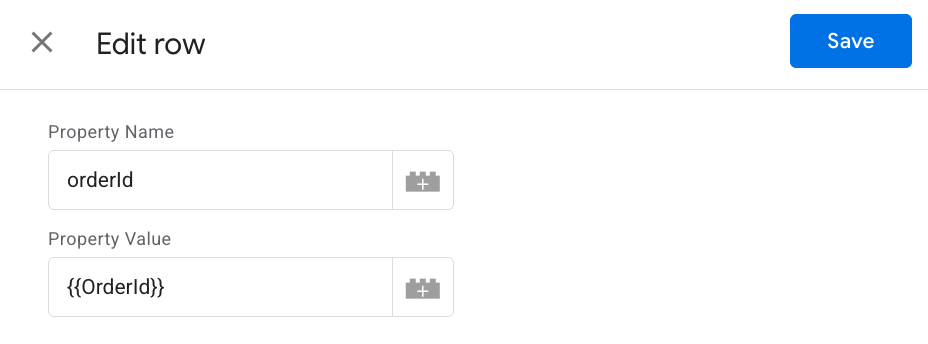
Properties: Allows you to add properties that will be sent with every event. To add a property, click on Add a Property and enter the input in the respective fields as follows:
a. Property Name: The name of the property.
b. Property Value: The value of the property.
- Enter the Event Name you want to send to VWO
-
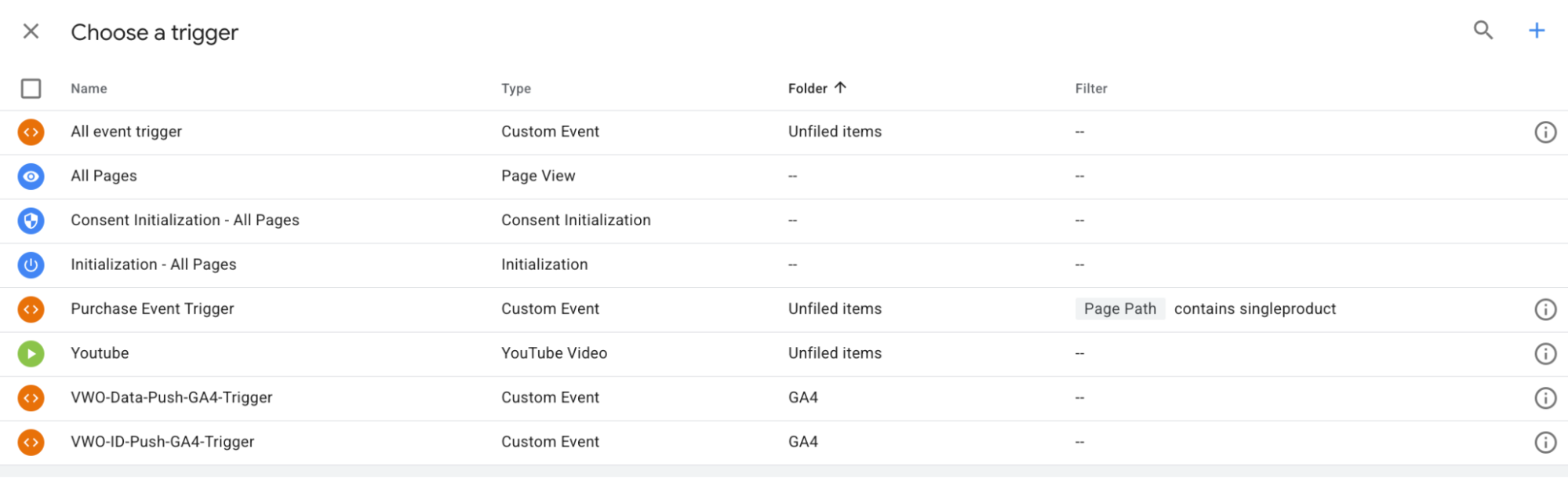
Click on the Triggering section and select the trigger to assign in the VWO Event Tag.
Advanced Settings (Optional)
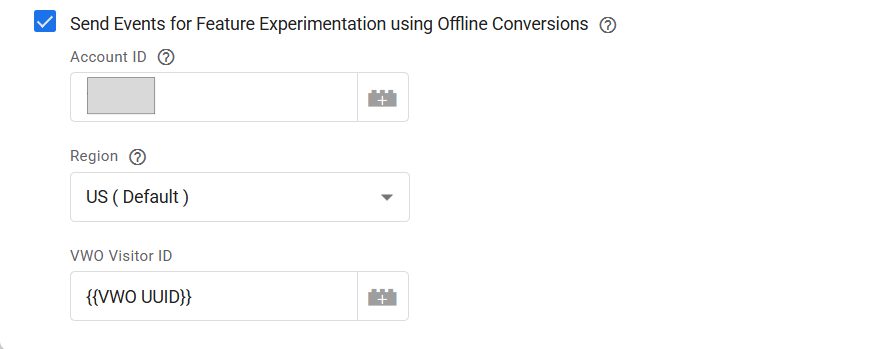
Send Events for Feature Experimentation using Offline Conversions: If checked, events will be sent to VWO as Offline Conversions.
– Account ID: Your VWO Account ID
– Region: Region, US (default)
– VWO Visitor ID: User’s UUID
Configuring the VWO UUID Variable(Only required for FE)
-
Navigate to the “Variables” tab in the GTM workspace.
-
Click on “New” to create a new variable.
-
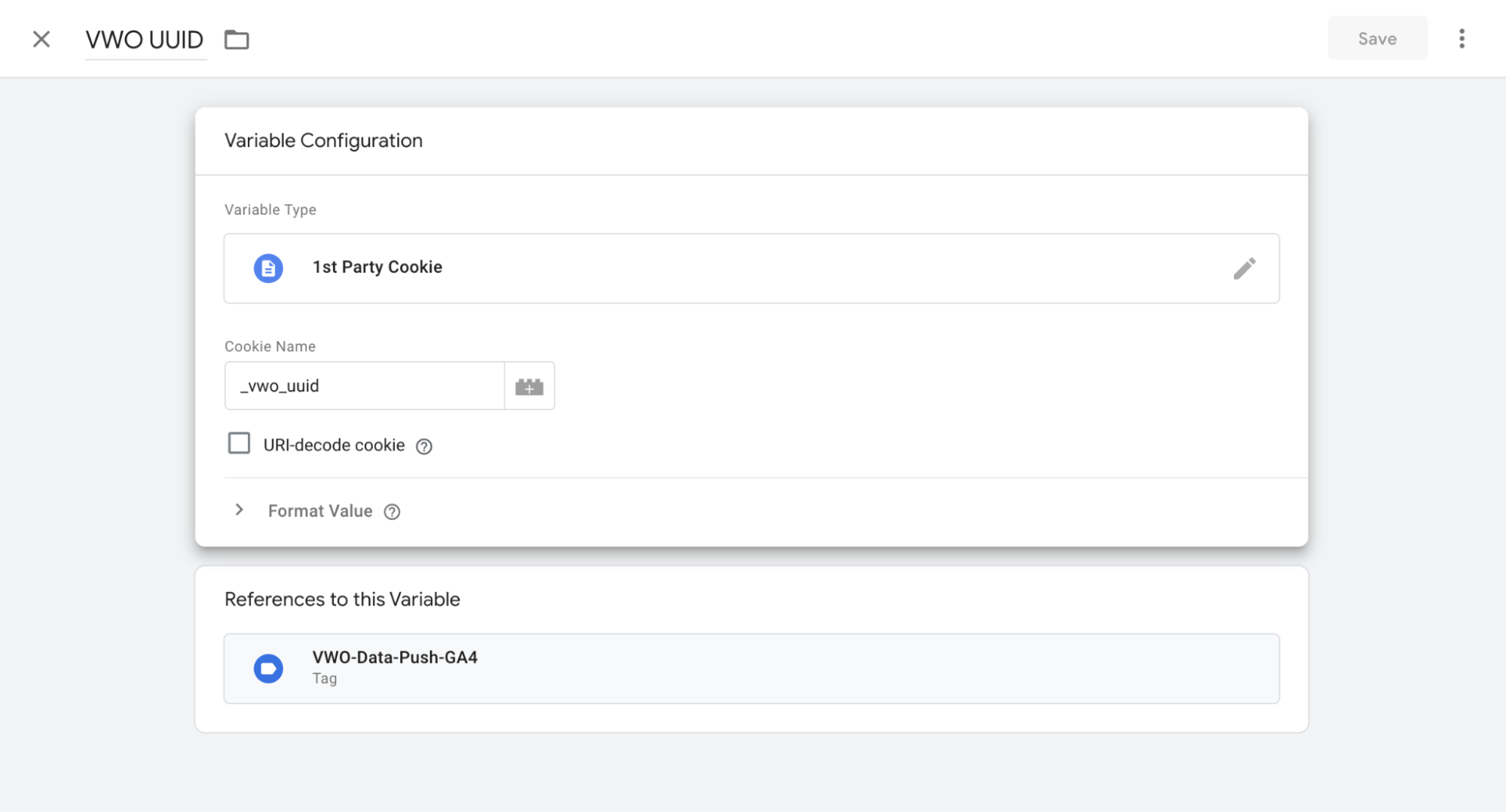
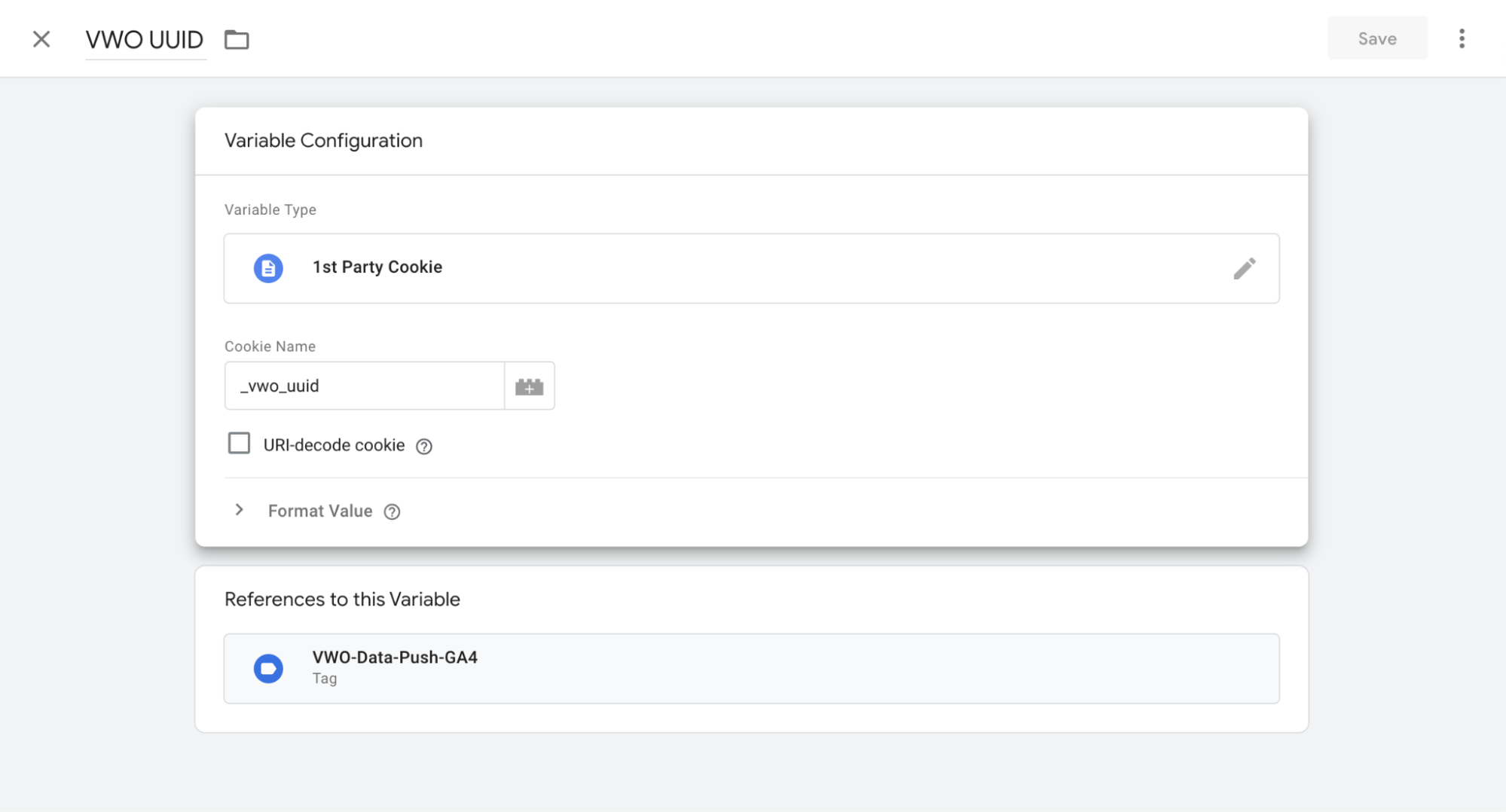
Name your variable as VWO UUID.
-
In the Variable Configuration section:
- Choose “1st Party Cookie” as the Variable Type.
- Enter _vwo_uuid in the Cookie Name field.
-
Save the variable.
NOTE: To enable GTM event tracking, the _vwo_uuid cookie must be accessible in the browser. Use the VWO SDK’s getUUID() method to generate this identifier based on your implementation:
Backend SDK (Server-Side)
- Generate: Call
getUUID(userId, accountId)in your SDK (e.g., Node.js). - Pass: Send the generated UUID from your server to the frontend.
- Set: Store the value in the browser as the
_vwo_uuidcookie. Ensure the cookie is notHttpOnlyso GTM can access it.
Frontend SDK (Client-Side)
- Generate: Call
getUUID()directly within your client-side SDK. - Set: Store the returned string in the browser using
document.cookiewith the name_vwo_uuid.
Technical Details
-
SmartCode Dependency: When the “Feature Experimentation” option is OFF, this tag relies on VWO SmartCode running on the page.
-
Via Offline Conversion: When ON, the tag pushes data independently of SmartCode. A valid VWO Visitor ID is required.
Recommended Best Practices
- While configuring the VWO Event tag in GTM, map event parameters (Properties) using dynamic GTM variables (typically sourced from the dataLayer) such as orderId or price, rather than using hard-coded static values.
- Maintain consistent naming conventions (camelCase, snake_case).
- For Offline Conversions, use a GTM 1st Party Cookie variable to read _vwo_uuid.
Troubleshooting / Known Issues
-
Issue: Event is not appearing in VWO
- Verify tag firing using GTM Preview mode
- Ensure VWO SmartCode loads before the GTM event fires (if Offline Conversion is not enabled)
-
Issue: Data not linked to the correct user (Offline Conversion)
- Ensure the VWO Visitor ID field is populated with a valid UUID
- If undefined, check the GTM cookie variable configuration
Updated 3 months ago