
Amplitude
Overview
Amplitude is a product analytics platform that helps teams understand user behavior, track engagement, and measure the impact of product changes with powerful event-based analytics.
VWO Feature Experimentation (FE) sends feature-flag and event data to Amplitude. This allows you to see which feature flag variations users are exposed to directly within your Amplitude reports. By correlating user behavior with specific experiments, you can gain deeper, data-driven insights into the real impact of your feature rollouts and campaigns.
Prerequisites
1. Amplitude Account Setup
- Create an Amplitude account at amplitude.com if you don't already have one.
- Create a new project in your Amplitude dashboard.
- Obtain your API Key from project settings (Settings > Projects > Your Project).
- Add your Amplitude API Key to your application's environment or constants file:
AMPLITUDE_API_KEY=your_amplitude_api_key2. VWO FE SDK Configuration
- Ensure VWO Feature Experimentation is enabled in your VWO account.
- The VWO FE SDK should be properly installed in your project.
- Locate your Account ID and SDK Key in the VWO dashboard.
- Set your VWO account ID and SDK key in your application's environment or constants file.
Integration Steps
Integrating the VWO FE SDK with analytics platforms like Amplitude allows you to automatically send feature flag evaluation and event tracking data to your analytics dashboard.
NoteThe example below shows an implementation with the
NodeSDK. Please note that any VWO FE SDK can be used.
1. Install Dependencies
Install the VWO FE Node SDK. No additional Amplitude SDK is required as we use the Amplitude HTTP API.
Bash
npm install vwo-fme-node-sdk2. Create a Helper for Sending Data to Amplitude
Create a helper function to send data to Amplitude's server-side HTTP API.
// amplitudeIntegration.js

const AMPLITUDE_API_KEY = process.env.AMPLITUDE_API_KEY;
const AMPLITUDE_ENDPOINT = 'https://api2.amplitude.com/2/httpapi';
// For EU data residency, use: 'https://api.eu.amplitude.com/2/httpapi'

function sendToAmplitude(eventType, userId, eventProperties) {
  const event = {
    event_type: eventType,
    event_properties: eventProperties,
  };

  // Amplitude requires either user_id or device_id
  if (userId) {
    event.user_id = userId;
  } else {
    event.device_id = 'vwo-server-side';
  }

  fetch(AMPLITUDE_ENDPOINT, {
    method: 'POST',
    headers: { 'Content-Type': 'application/json' },
    body: JSON.stringify({
      api_key: AMPLITUDE_API_KEY,
      events: [event],
    }),
  }).catch((err) => console.warn('[Amplitude] failed:', err.message));
}

module.exports = { sendToAmplitude };
3. Initialize VWO SDK and Set Up the integrations.callback
integrations.callbackProvide an integrations.callback when initializing the FE SDK. Inside the callback, check the properties to determine if it's a flag evaluation or an event tracking call and forward the data to Amplitude.
const { init } = require('vwo-fme-node-sdk');
const { sendToAmplitude } = require('./amplitudeIntegration');

const vwoClient = await init({
  sdkKey: process.env.FE_SDK_KEY,         // Replace with your actual VWO FE SDK key
  accountId: process.env.FE_ACCOUNT_ID,   // Replace with your actual VWO FE account ID
  integrations: {
    callback(properties) {
      if (properties.featureName) {
        // flag evaluation
        sendToAmplitude('VWO_getFlag', properties.userId, {
          featureName: String(properties.featureName || ''),
          featureId: String(properties.featureId || ''),
          featureKey: String(properties.featureKey || ''),
          experimentId: String(properties.experimentId || ''),
          experimentKey: String(properties.experimentKey || ''),
          experimentVariationId: String(properties.experimentVariationId || ''),
          rolloutId: String(properties.rolloutId || ''),
          rolloutKey: String(properties.rolloutKey || ''),
          rolloutVariationId: String(properties.rolloutVariationId || ''),
          isUserPartOfCampaign: String(properties.isUserPartOfCampaign || ''),
          isPartOfHoldout: String(properties.isPartOfHoldout || ''),
          isHoldoutPresent: String(properties.isHoldoutPresent || ''),
          holdoutIDs: JSON.stringify(properties.holdoutIDs || []),
          customVariables: JSON.stringify(properties.customVariables || {}),
          variationTargetingVariables: JSON.stringify(properties.variationTargetingVariables || {}),
        });
      } else if (properties.api === 'trackEvent') {
        // event tracking
        sendToAmplitude('VWO_trackEvent', null, {
          eventName: String(properties.eventName || ''),
        });
      }
    },
  },
});
Integration Data
The integrations.callback receives a properties object containing details about the VWO SDK action:
For flag evaluations (getFlag):
{
  "featureName": "yourFlagName",
  "featureId": 5,
  "featureKey": "yourFlagKey",
  "userId": "UserId",
  "api": "getFlag",
  "rolloutId": 789,
  "rolloutKey": "rollout_checkout",
  "rolloutVariationId": 1,
  "experimentId": 321,
  "experimentKey": "exp_checkout_test",
  "experimentVariationId": 2,
  "isUserPartOfCampaign": true,
  "isPartOfHoldout": false,
  "isHoldoutPresent": false,
  "holdoutIDs": [],
  "customVariables": { "_vwoUserId": "UserId" }
}
For event tracking (trackEvent):
{
  "eventName": "yourEventName",
  "api": "trackEvent"
}
Sample Screenshots
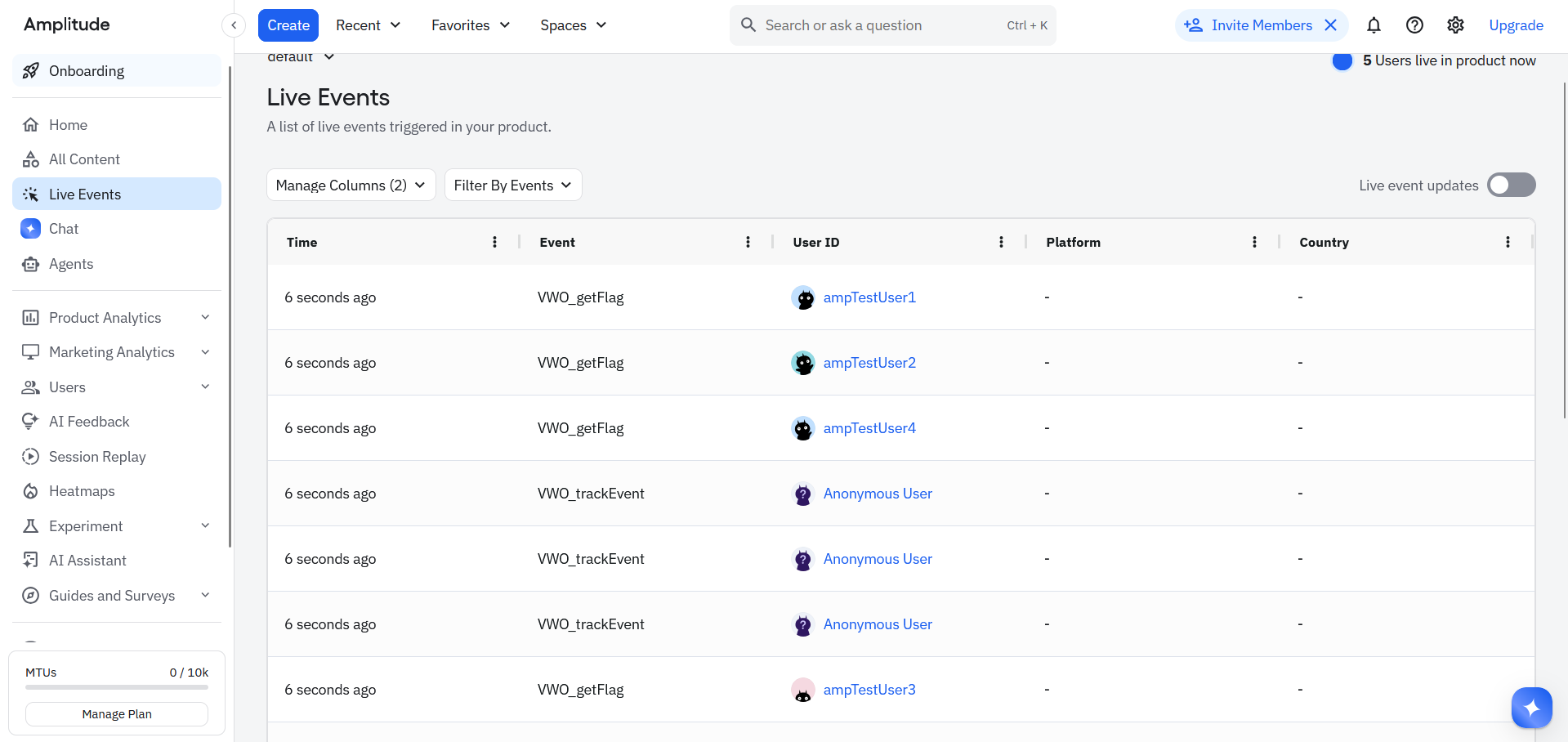
Live Events — VWO_getFlag events with user IDs arriving in real-time
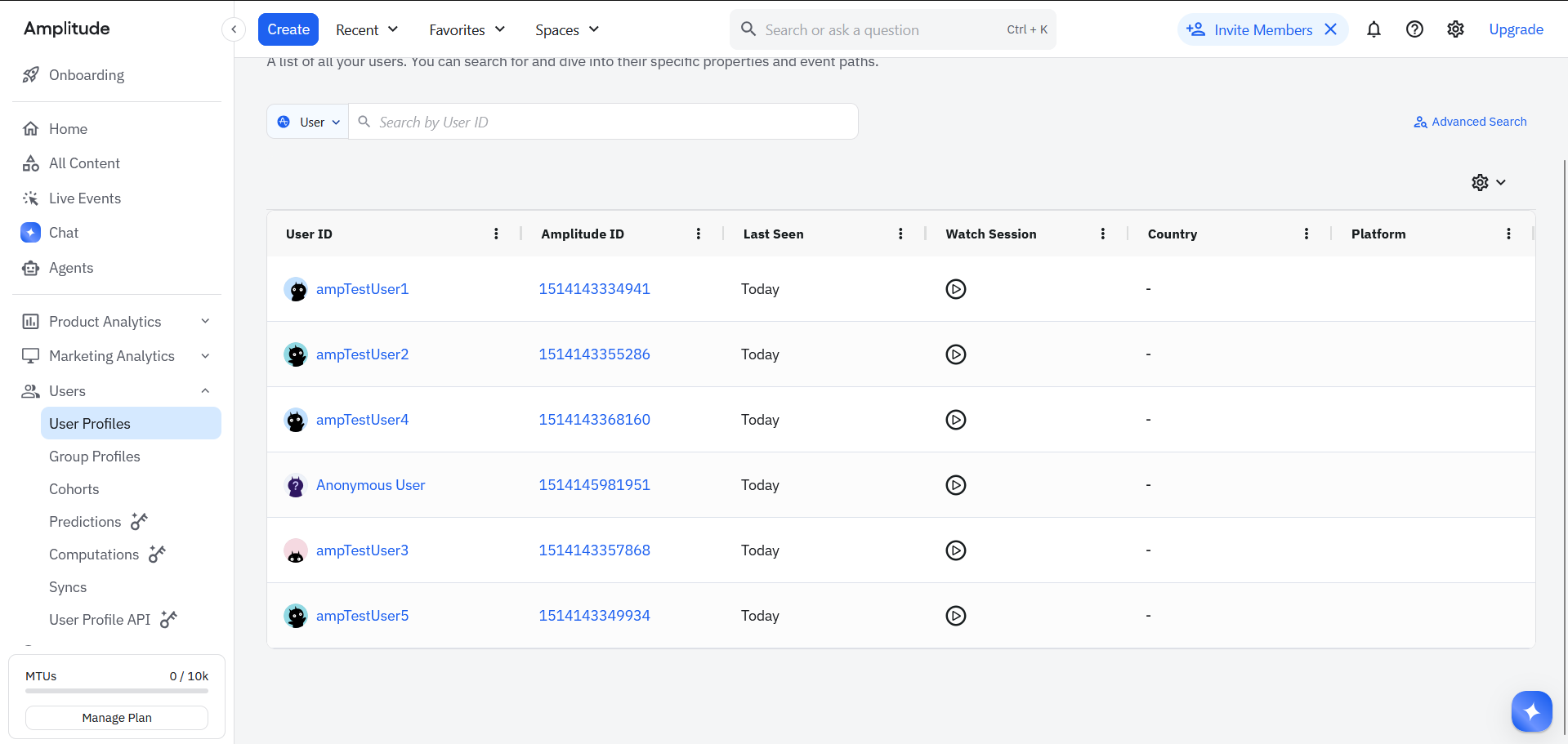
User Profiles — Users created automatically from server-side events:
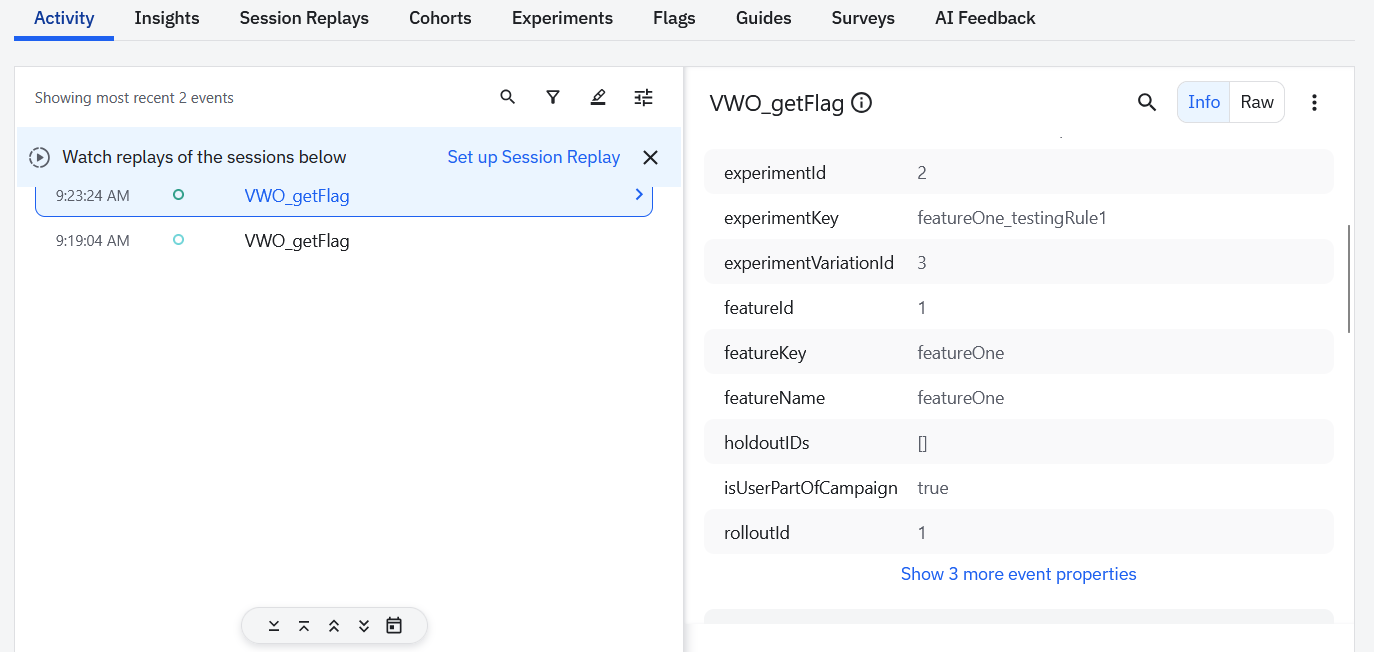
Event Properties — VWO_getFlag event with all custom event properties:
How to See the Data in Amplitude
After integrating Amplitude with your application, you can view the tracked data in the following ways:
- Access Amplitude Dashboard:
- Log in to your Amplitude account at amplitude.com
- Navigate to your project dashboard
- Ensure you are in the correct environment (Production or Development)
- View Feature Flag Evaluations:
- Go to Live Events in the left sidebar
- Look for events named
VWO_getFlag - Click on any event to see custom properties like
featureKey,experimentId, etc.
- Track Custom Events:
- Find events named
VWO_trackEvent - These events include details about the tracked event name
- Find events named
- View User Profiles:
- Go to Users > User Profiles
- Users are automatically created from server-side events
- Analyze Data: Use Amplitude's analytics tools to create custom charts, segment users by variation, and track conversion rates.
Updated about 1 month ago