
New Relic Triggers
Overview
Triggers allow you to automatically disable a specific rule inside a VWO Feature Flag when a metric threshold is breached in New Relic.
Use Case: If your error rate spikes after a new feature rollout, New Relic can "fire" a webhook to VWO to turn off the feature flag immediately, acting as an automated "Kill Switch."
1. Creating the Trigger URL
To set this up, you need to construct the API URL for the specific feature environment you want to control.
URL Format
https://app.vwo.com/api/v2/accounts/current/environments/<envId|sdkKey>/features/<featureId|featureKey>/toggle?isEnabled=0&authToken=<your_api_token>Required Parameters
- featureId_or_key – The ID or key of the feature flag you want to control.
- envId_or_key – The ID or key of the environment where the feature flag should be toggled.
- isEnabled – Set to
0to disable the feature flag (or1to enable it). - authToken– Your VWO API authentication token.
2. Connecting to New Relic
Configure New Relic to send a signal to the URL you created above.
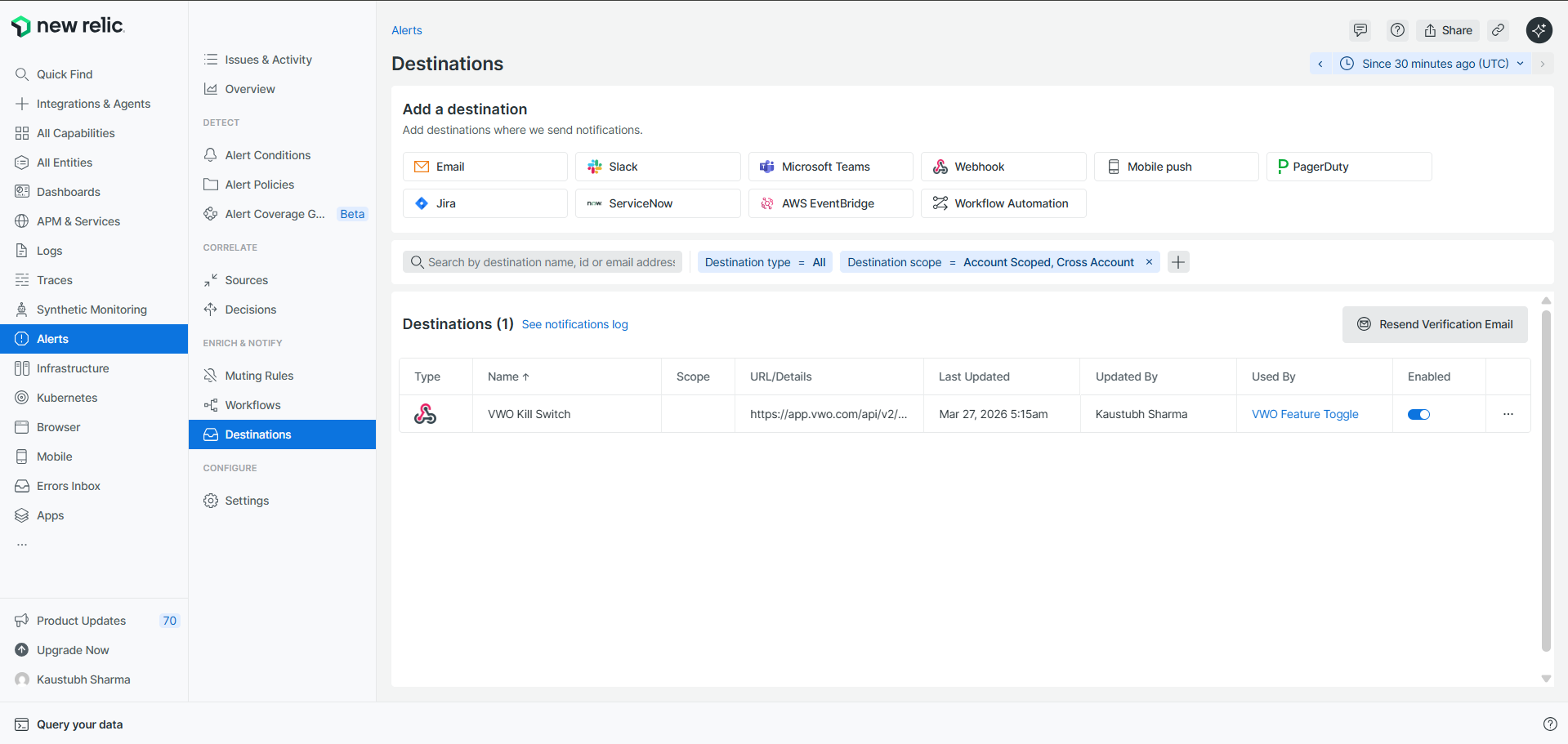
Create the Destination
-
Log in to New Relic and navigate to Alerts > Destinations.
-
Click New destination and select Webhook.
-
Webhook name: e.g.,
vwo-kill-feature-hook -
Endpoint URL: Paste the full Trigger URL constructed in Step 2.
-
Authorization: Select No authorization (since the token is already in the URL string).
-
Click Save destination.
Create the Workflow
-
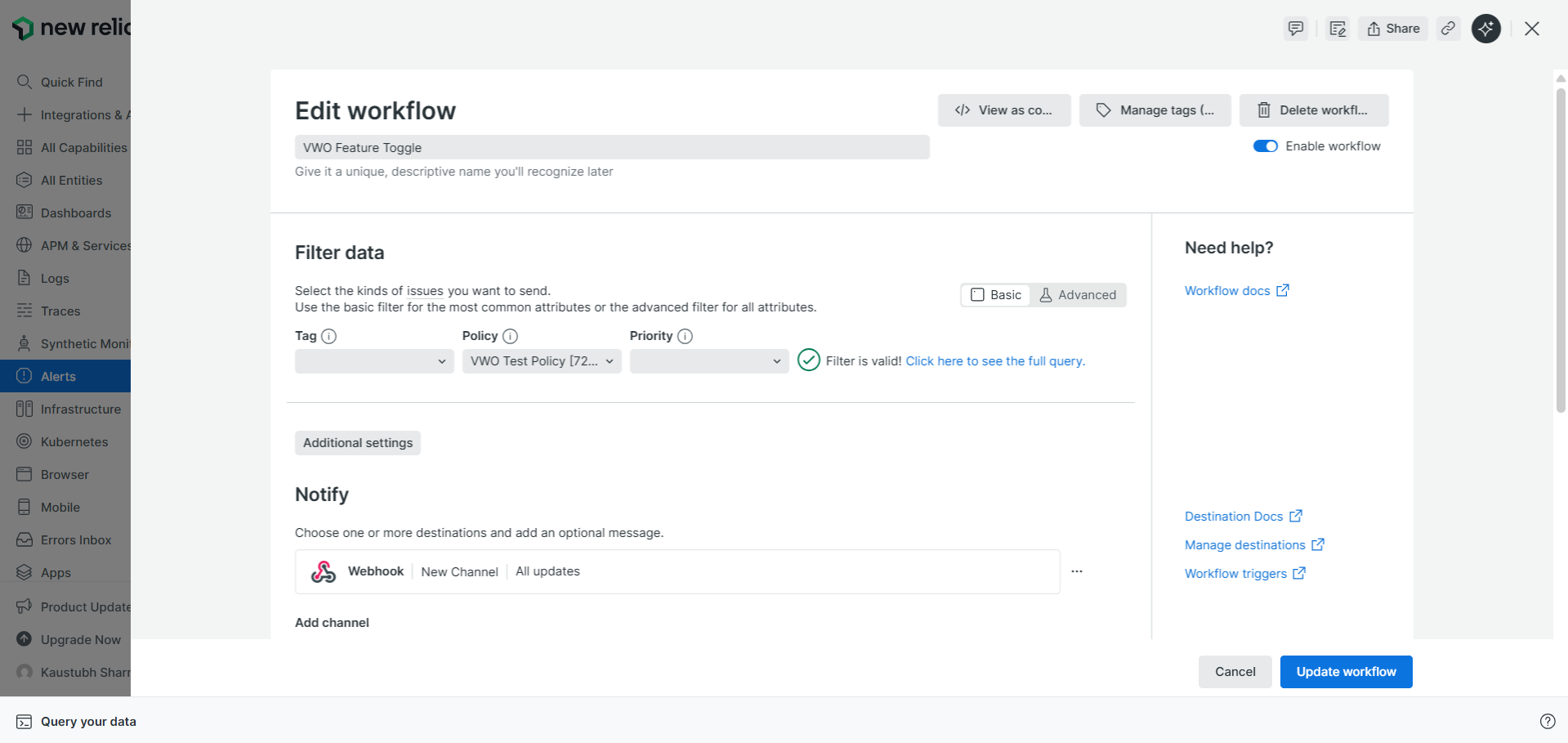
Navigate to Workflows (located in the left sidebar under Alerts).
-
Click Add a workflow.
-
Name: e.g.,
VWO Feature Toggle Workflow. -
Under Filter issues, define which alerts should trigger this (e.g., Policy Name contains "Critical Errors").
-
Under the Notify section, click Webhook.
-
Select the Destination you created in Step A.
-
Click Update Message and then Save.
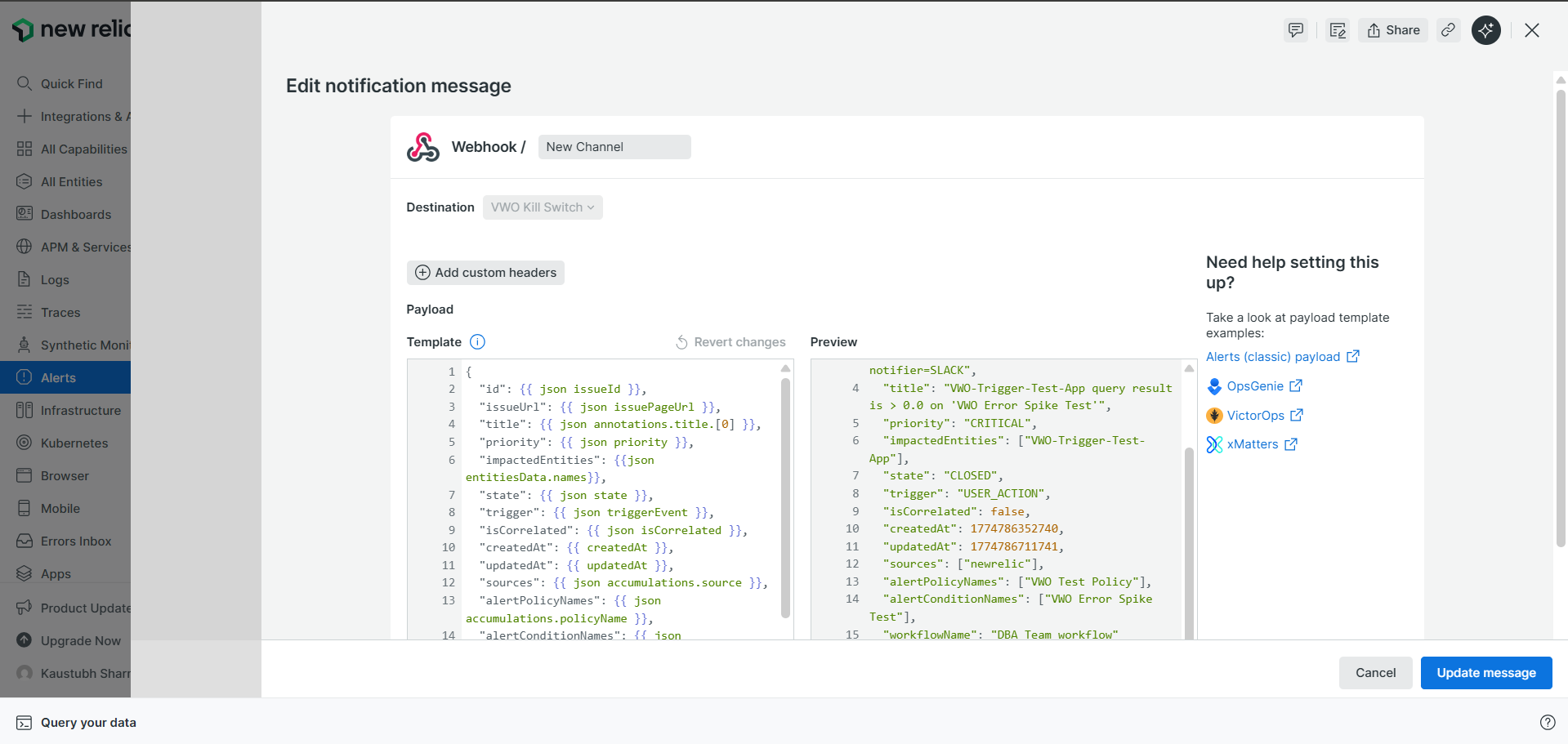
Note: You do not need to customize the JSON payload; the action is handled by the URL itself.
3. Setting up the Alert Condition
Link the workflow to a specific performance metric using NRQL.
-
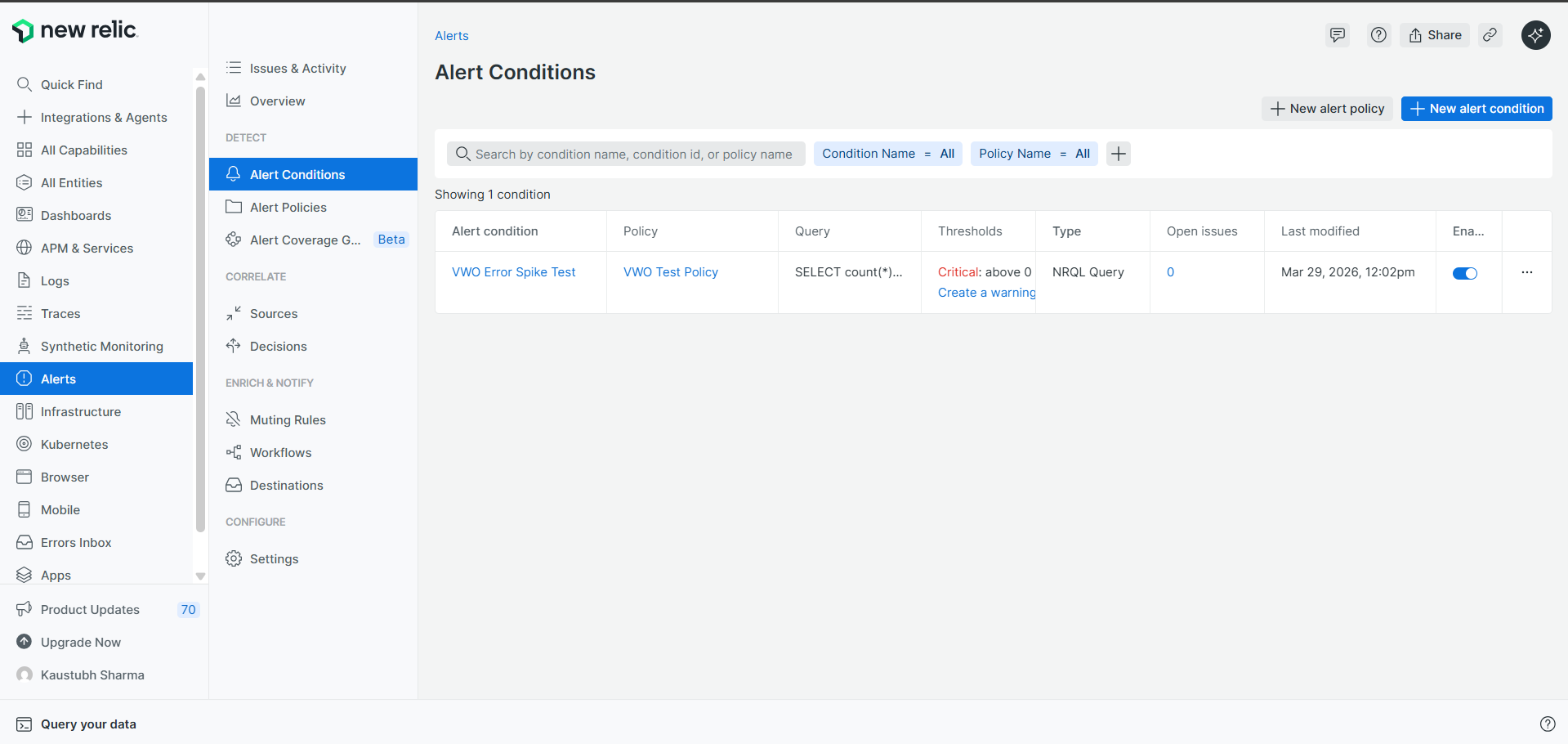
Navigate to Alerts > Alert Conditions.
-
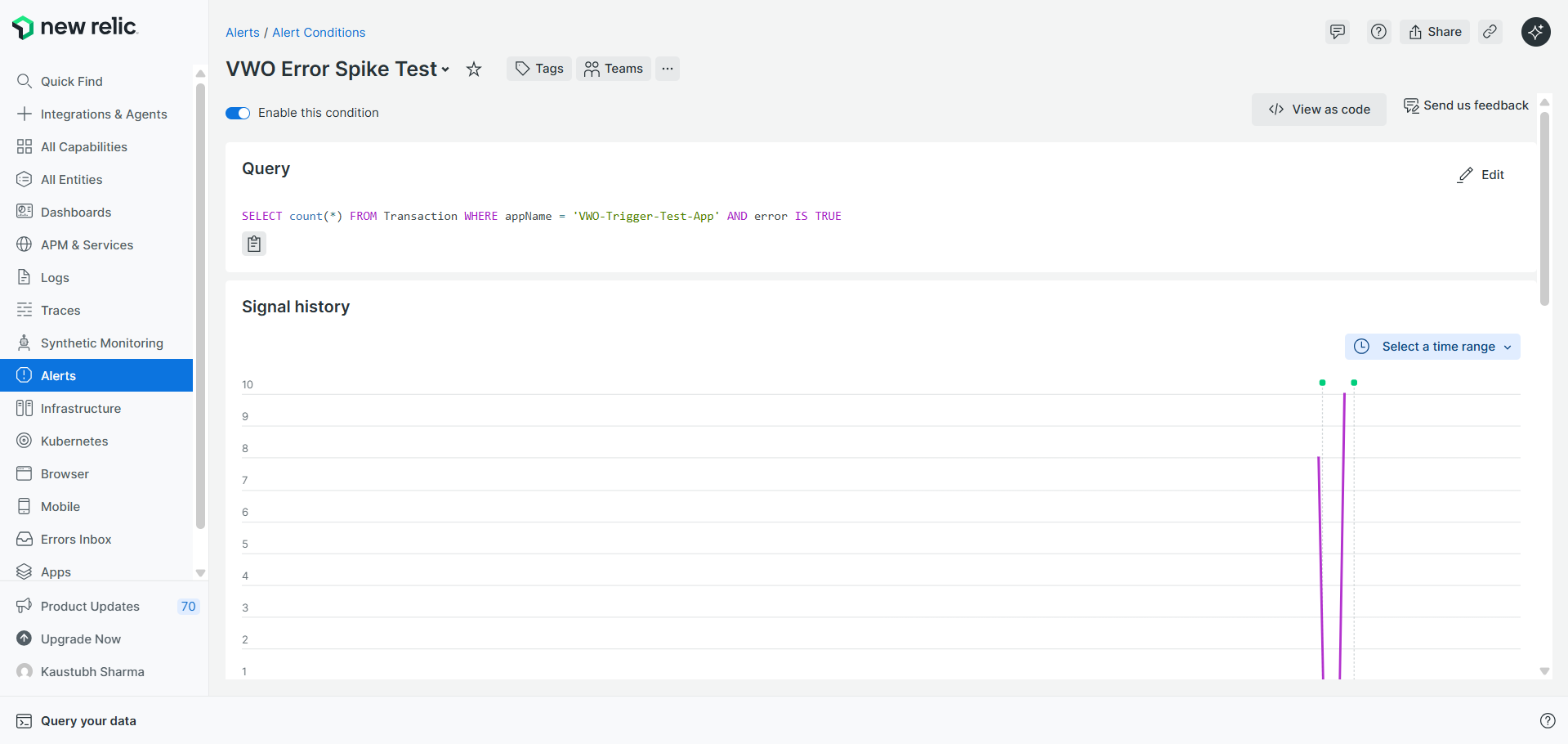
Click New alert condition and select Write your own query (NRQL).
-
Define Query: Input the metric you want to monitor.
-
Set Threshold: Define the breaking point (e.g.,
Static > 5 errorsat least once in 1 minute). -
Advanced Signal Settings:
- Set Fill data gaps with to
Custom static value: 0. This prevents the alert from "floating" when there is no traffic.
- Set Fill data gaps with to
-
Assign Policy: Ensure this condition is part of the Policy linked to the Workflow created in Step 3.
-
Click Save condition.
4. Verification
- Test the Webhook: In the New Relic Destination settings, use the "Test connection" feature to ensure VWO receives the toggle command.
- Check VWO: Once the test is sent, refresh your VWO dashboard to see if the Feature Flag status has moved to Disabled.
Updated about 1 month ago