Segment
Overview
Segment is a leading Customer Data Platform (CDP) that collects, cleans, and routes your customer data to hundreds of tools. By integrating Segment with VWO Feature Experimentation, you can leverage Segment’s powerful "Personas" and "Audiences" to drive your experimentation strategy.
What This Integration Achieves
This integration allows you to use Segment-computed traits and audiences for VWO feature flag targeting. By importing these segments into VWO, you can perform highly granular rollouts and A/B tests based on real-time user data captured across your entire tech stack.
Key Benefits:
- Audience-based targeting: Run feature experiments only for specific Segment audiences.
- Personalized rollouts: Deliver variations tailored to user traits (e.g., plan, region, engagement level, lifecycle stage).
- Audience-driven A/B testing: Combine Segment’s unified customer data with VWO’s experimentation engine.
- Data-driven decisions: Leverage Segment’s rich cross-platform user data for more effective feature rollouts.
Step 1: Enabling the VWO-Segment Integration for your VWO Account
To enable the Segment integration in VWO:
-
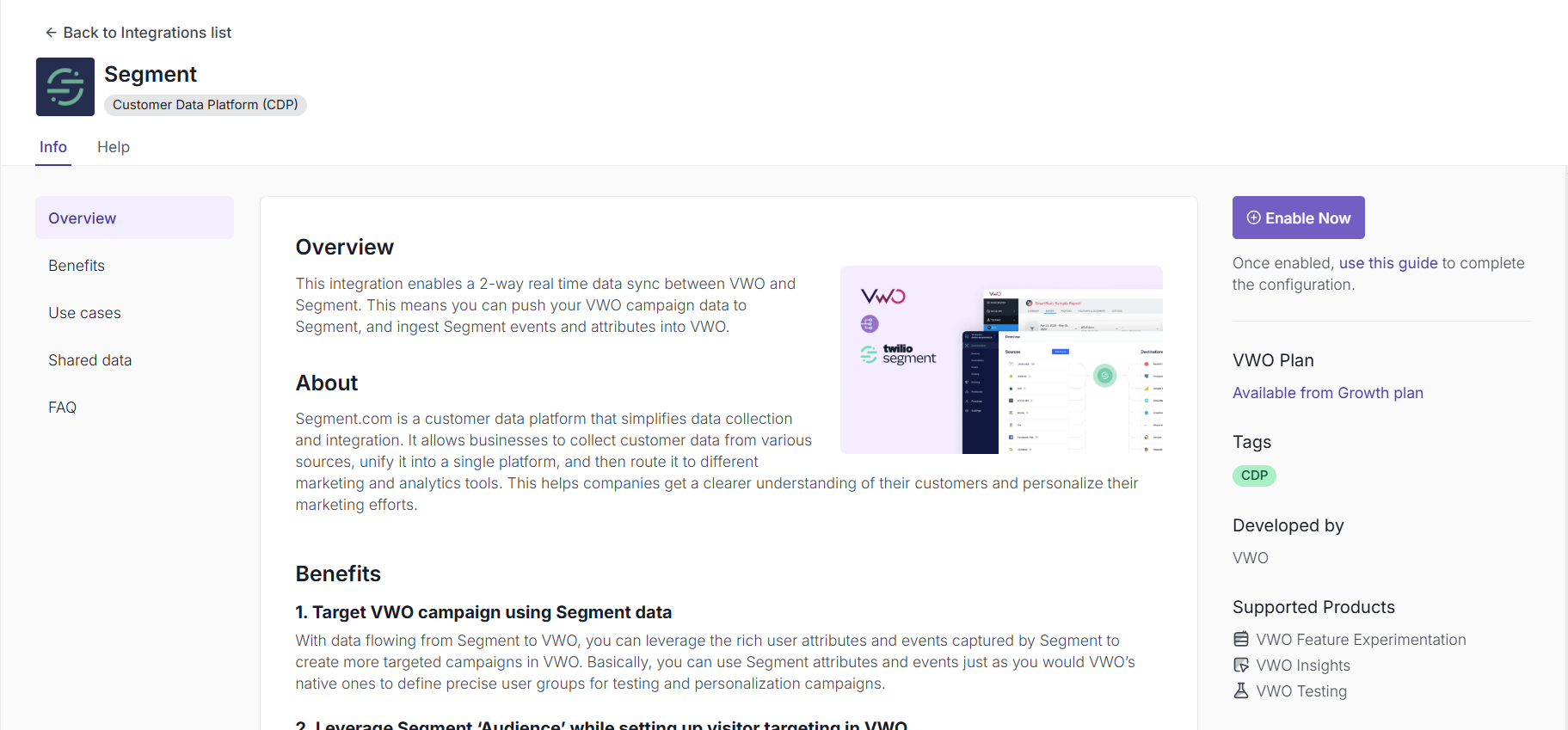
From the main menu of your VWO dashboard, go to Configurations > Integrations.
-
Click on the Segment integration and enable it by switching on the toggle.
-
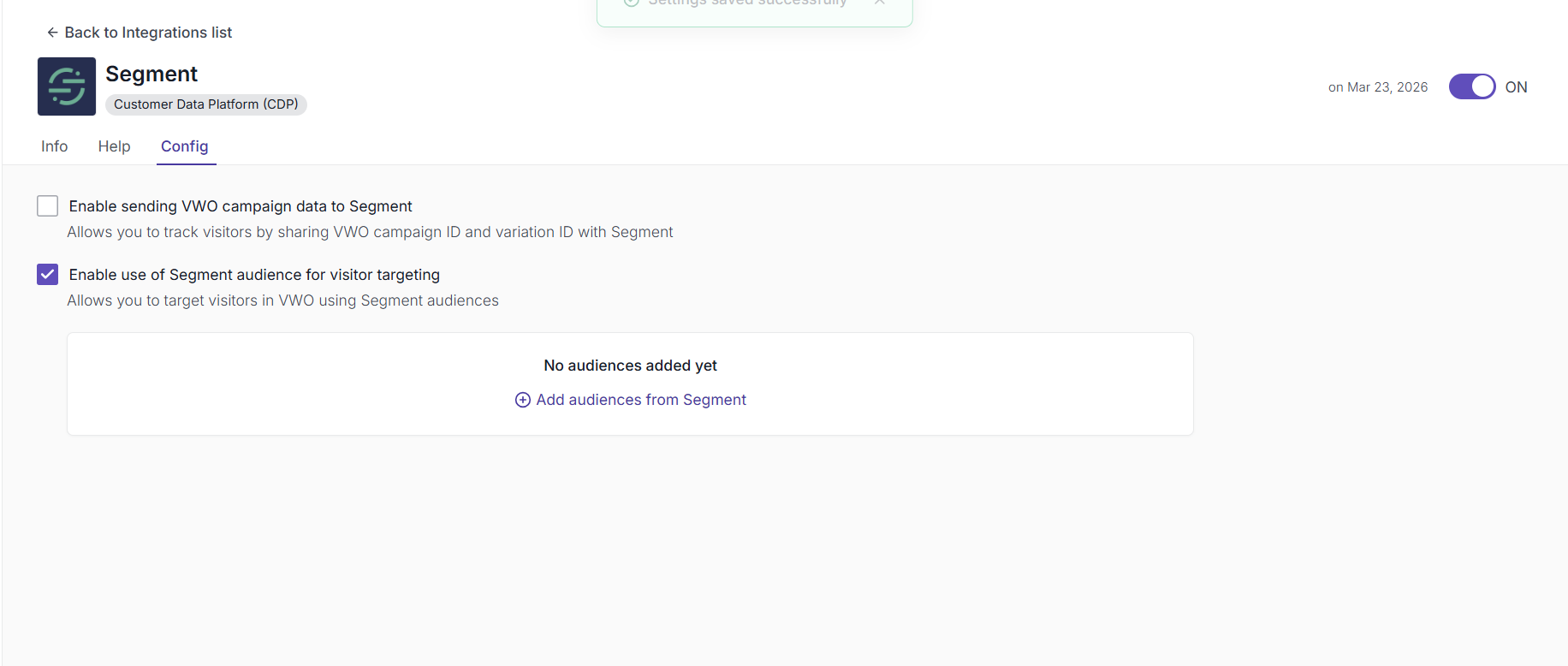
You will be auto-navigated to the Config tab.
-
Enable "Enable use of Segment audiences for visitor targeting".
-
Click Save.
Step 2: Configure VWO Cloud Mode (Actions) in Segment
Before VWO can see your audiences, you must connect them via the Cloud Mode destination:
-
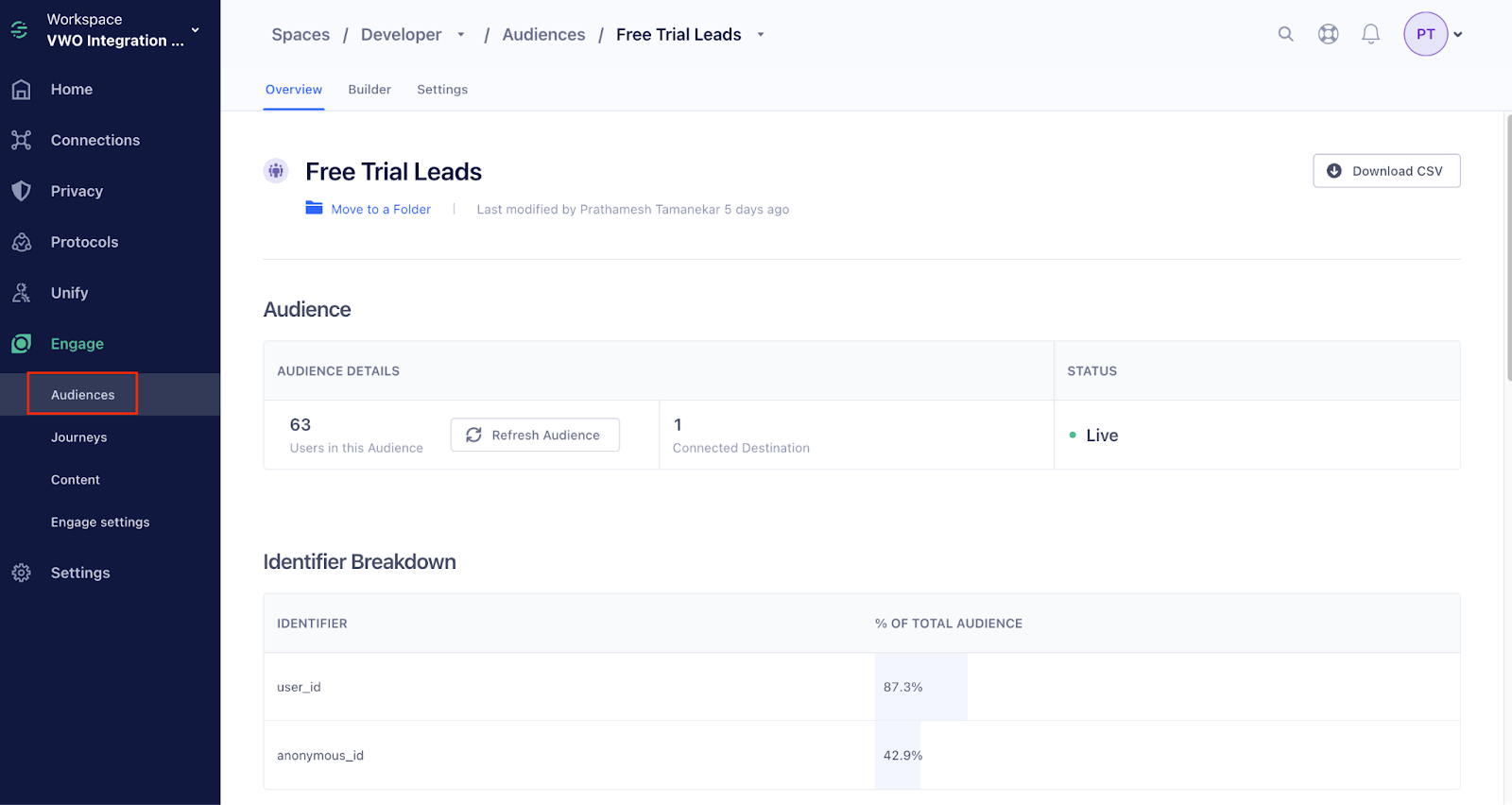
In your Segment dashboard, navigate to Engage > Audiences and select your desired audience.
-
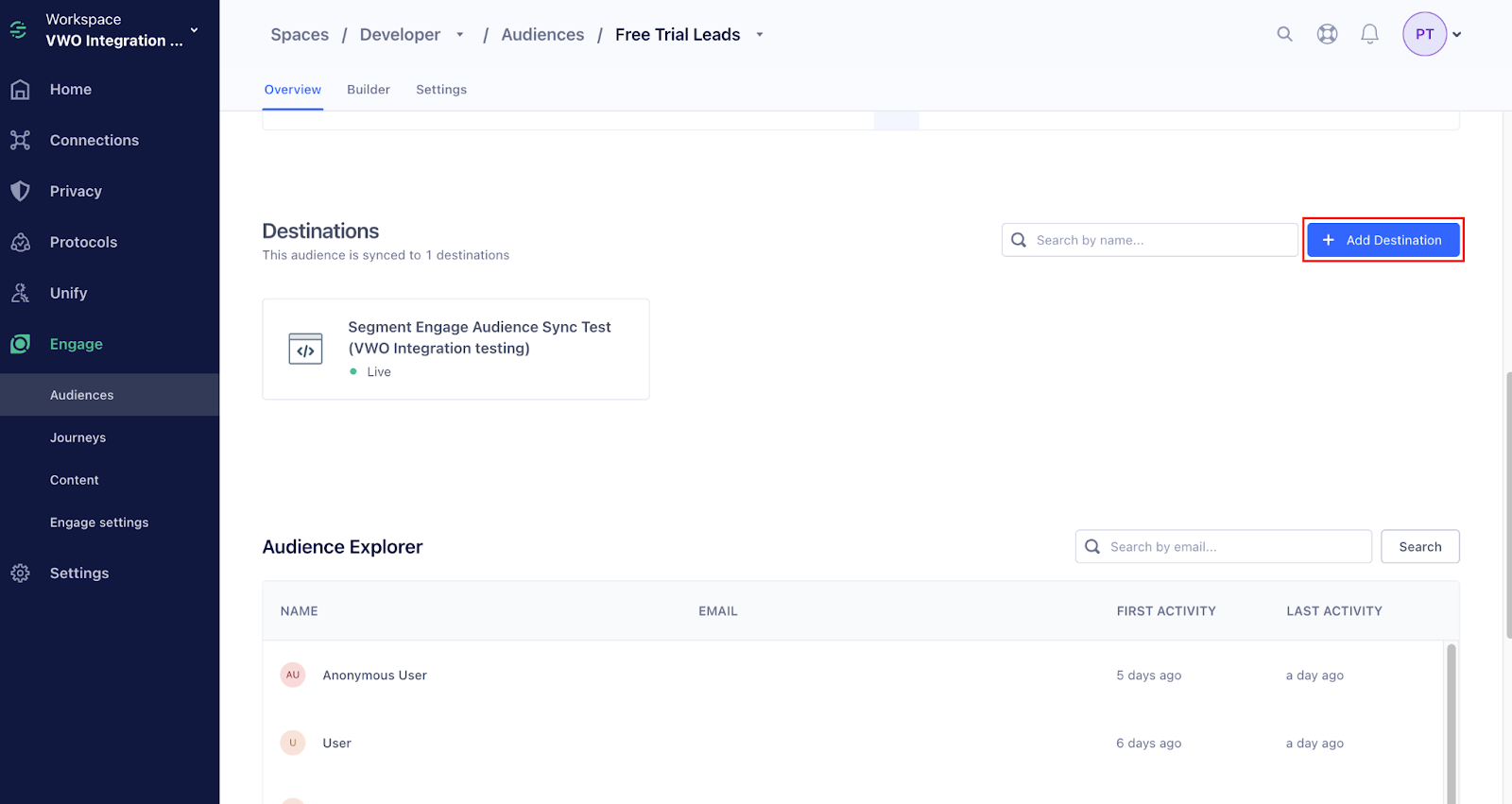
Under the Destinations section, click Add Destination.
-
Select the VWO Cloud Mode (Actions) destination.
INFO: If you can’t find the VWO Cloud Mode (Actions) destination, you need to install it by performing the steps mentioned here.
Enabling the VWO Cloud Mode (Actions) destination is essential as it is the channel through which the events, attributes, and audiences are transited to VWO from Segment.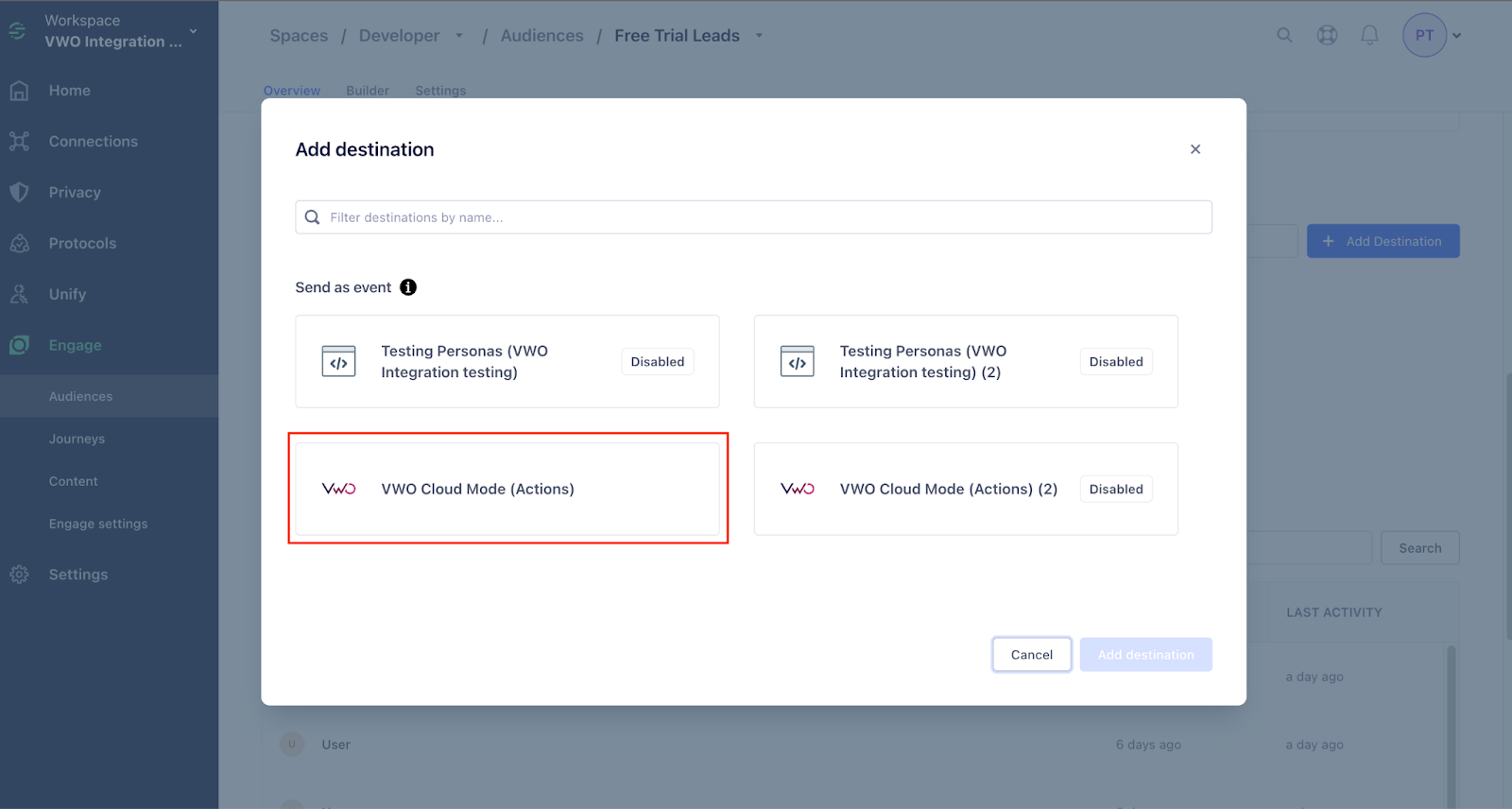
-
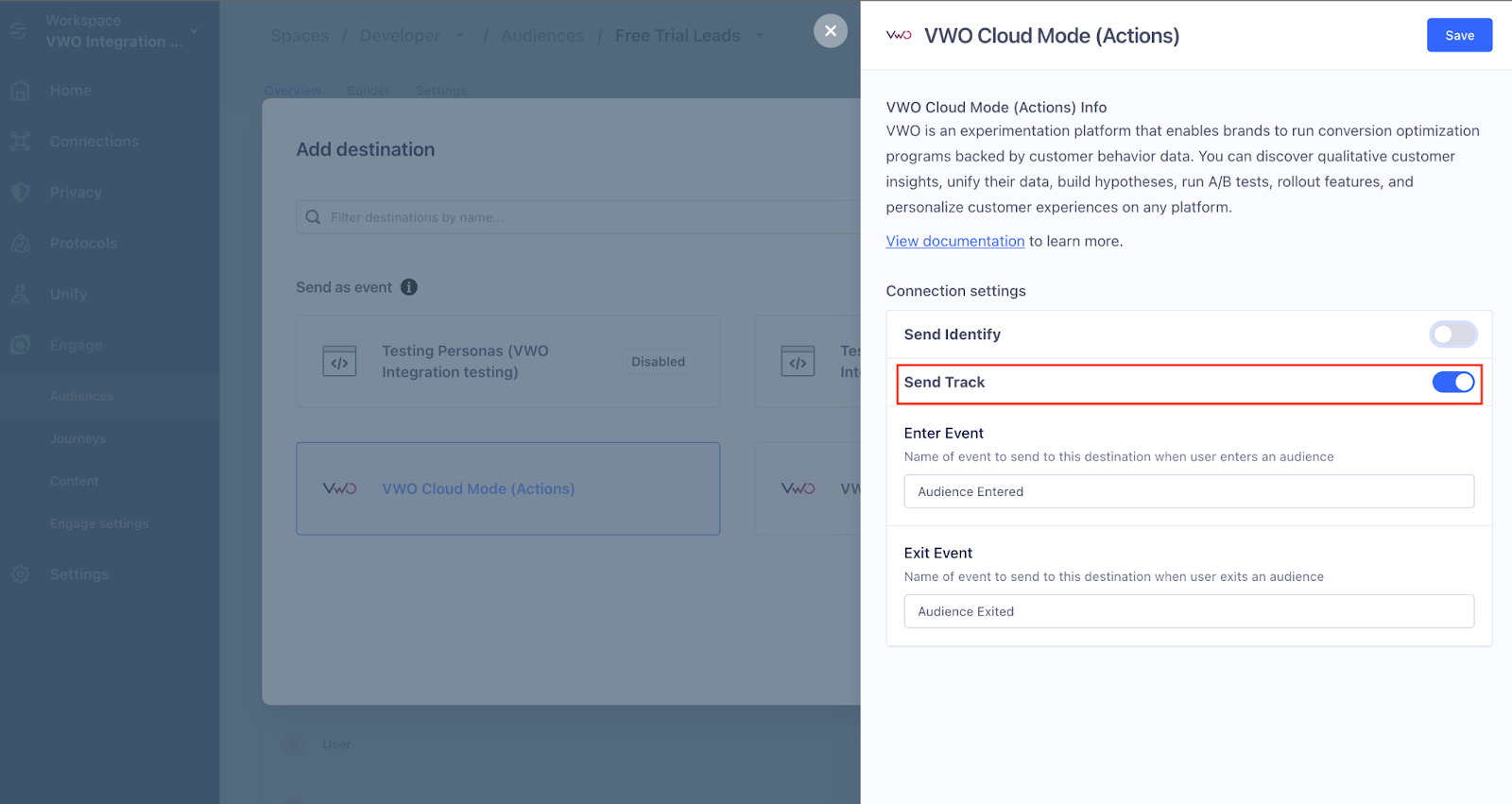
In the destination settings, ensure Send Track is enabled under Connection settings.
-
Click Save.
Note: Segment audiences populate in VWO only after your website receives a visitor following this connection.
Step 3: Import & Activate Segment Audiences in VWO
-
Back in VWO (Configurations > Integrations > Segment > Config), click Add Audience.
-
In the popup, search for or select the Segment audience from the list.
Note: List visibility requires a successful connection with the Cloud Mode destination.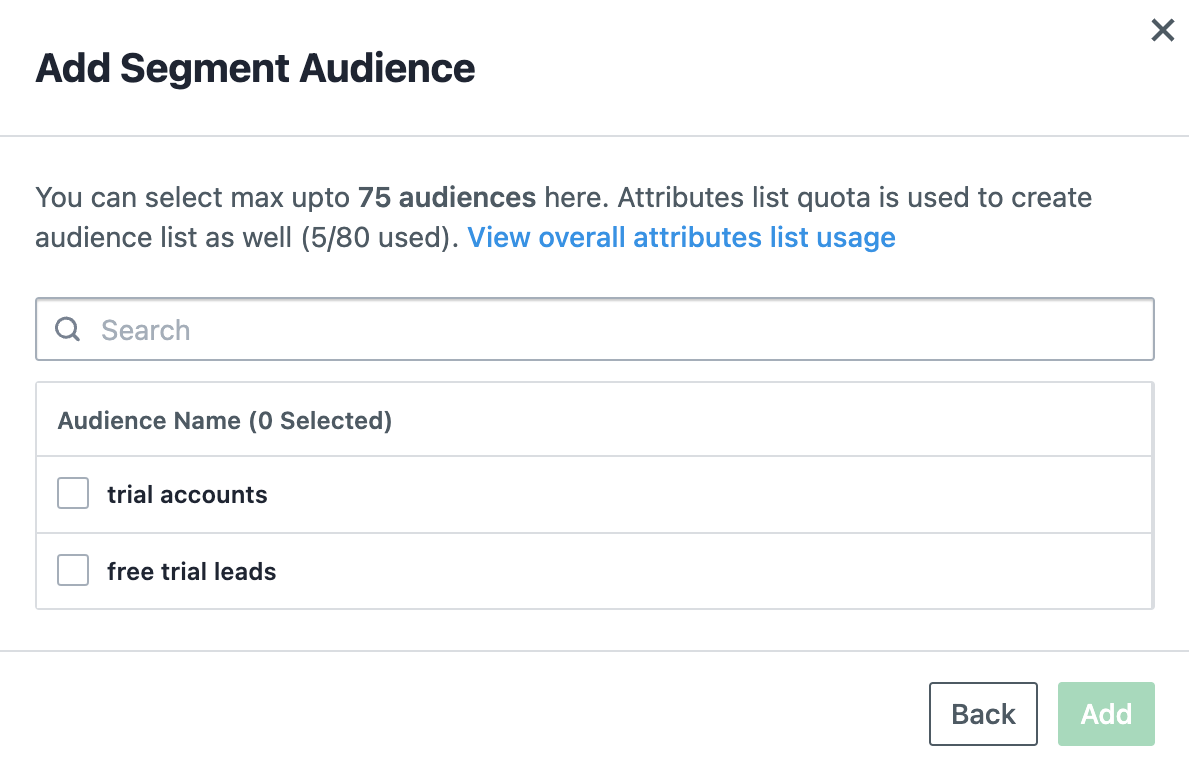
-
Click Add. A toast message will confirm the addition.
Note: Syncing: VWO takes ~24 hours for the initial sync, then updates every 24 hours. Use Sync all or the vertical ellipsis (⋮) for a manual sync.
Step 4: SDK Setup (Node.js Example)
4.1 Install and Initialize the VWO SDK
Install the official VWO FE Node SDK:
Bash
npm install vwo-fme-node-sdk4.2 Setup Gateway Service
The Gateway Service is required for real-time flag evaluation against synced segments.
Reference: VWO Gateway Service Doc
4.3 Initialize the SDK with Gateway Service
const vwo = require('vwo-fme-node-sdk');
const vwoClient = await vwo.init({
    sdkKey: 'YOUR_SDK_KEY',
    accountId: 'YOUR_ACCOUNT_ID',
    gatewayService: {
        url: 'YOUR_GATEWAY_SERVICE_URL'
    }
});
Step 5: Setting Up Pre-Segmentation in VWO
Configure the targeting rules for your feature flag:
- Navigate to Feature Experimentation → Feature Flags.
- Under the Rules tab, click Create New Rollout Rule.
- Under Audience, choose Custom Segment.
- In Attribute, select Custom Variable.
- Enter the identifier name used (e.g.,
PayPal). - Choose Operator → In List.
- Select the Attribute List corresponding to your Segment Audience.
- Save the rule and toggle ON.
Step 6: Implementing Segment Targeting in SDK
Pass the identifier inside customVariables to evaluate the user.
let context = {
    id: 'UserID', // Unique user identifier
    customVariables: {
        // "PayPal" must match the key defined in VWO Pre-segmentation
        "PayPal": "650412318e2-46d5-cfb07a69958"
    }
};
const featureFlag = vwoClient.getFlag('featureKey', context);
if (featureFlag.isEnabled()) {
    console.log("Segmentation passed: User qualifies for the Segment audience.");
} else {
    console.log("Segmentation failed: User is not in the Segment list.");
}
Explanation
- VWO Cloud Mode (Actions): This is the essential channel for transiting audience data from Segment to VWO.
- In List Logic: If the
customVariablesvalue passed in the SDK (e.g., the specific ID forPayPal) exists in the imported Segment list, the user qualifies for the rollout.
Notes & Best Practices
- 24-Hour Sync: Be mindful that VWO syncs Segment audience data every 24 hours by default. Use Manual Sync for immediate testing.
- ID Mapping: Ensure the key used in
customVariablesmatches the identifier name defined in VWO's rule configuration. - Gateway Service: Always ensure the Gateway Service is reachable for server-side evaluation of these audiences.
Updated about 1 month ago